
No products in the cart.






Managing meetings and scheduling appointments efficiently is crucial for business professionals, remote workers, and students in Qatar. Microsoft Outlook provides a powerful calendar feature that helps you organize your schedule, send meeting invites, and stay on top of your tasks.
Whether you’re using Outlook on Windows, Mac, or the mobile app, this guide will show you how to schedule meetings, set reminders, and manage your calendar effectively.
1. How to Schedule a Meeting in Outlook
Outlook makes it easy to schedule meetings with colleagues, clients, or teams. Follow these steps:
📌 On Desktop (Windows/Mac)
1️⃣ Open Outlook and go to the Calendar tab.
2️⃣ Click on “New Meeting” or “New Appointment” (depending on your version).
3️⃣ Add Meeting Title (e.g., “Weekly Team Update”).
4️⃣ Set the Date and Time for the meeting.
5️⃣ Enter the Email Addresses of participants.
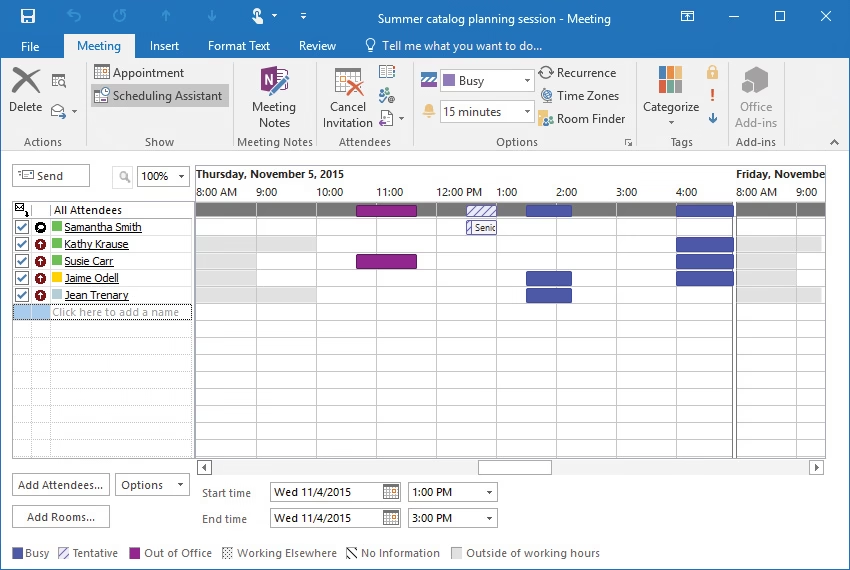
6️⃣ Use the Scheduling Assistant to check everyone’s availability.
7️⃣ Add a Meeting Location (or choose “Teams Meeting” for an online meeting).
8️⃣ Click Send to send the invite.
📌 On Outlook Mobile (iOS/Android)
1️⃣ Open the Outlook App and tap on Calendar.
2️⃣ Tap the “+” or “New Event” button.
3️⃣ Enter the meeting details (title, date, participants).
4️⃣ Tap “Save” or “Send” to confirm.
📌 Tip: If your meeting is online, choose “Teams Meeting” to generate a Microsoft Teams link automatically.
2. How to Set Meeting Reminders in Outlook
To ensure you never miss an important meeting, Outlook allows you to set reminders before your meeting starts.
🔔 How to Set a Reminder
1️⃣ Open your scheduled meeting in Outlook.
2️⃣ Find the “Reminder” option.
3️⃣ Choose how early you want to be reminded (e.g., 10 minutes, 30 minutes, 1 hour before).
4️⃣ Click Save & Close.
📌 Tip: Set a 15-minute reminder for quick meetings and a 1-hour reminder for important business discussions.
3. How to Manage & Share Your Outlook Calendar
If you work in a team or manage multiple schedules, sharing your Outlook calendar makes collaboration easier.
📌 How to Share Your Calendar
1️⃣ Open Outlook and go to the Calendar tab.
2️⃣ Click on “Share Calendar”.
3️⃣ Enter the email addresses of the people you want to share it with.
4️⃣ Choose permissions (e.g., “View Only” or “Edit & Manage”).
5️⃣ Click Send.
📌 Tip: This is useful for managers, team leaders, and assistants who need to coordinate schedules.
4. How to Use the Scheduling Assistant in Outlook
The Scheduling Assistant helps you find the best meeting time when working with multiple people.
📌 Steps to Use Scheduling Assistant
1️⃣ Click “New Meeting” in Outlook.
2️⃣ Add participants’ email addresses.
3️⃣ Click on “Scheduling Assistant”.
4️⃣ The tool will show everyone’s available and busy times.
5️⃣ Select a time when all participants are free.
📌 Tip: If scheduling across different time zones, Outlook adjusts the meeting time automatically.
5. How to Set Up Recurring Meetings in Outlook
For weekly team meetings or monthly reviews, setting up a recurring meeting saves time.
📌 Steps to Create a Recurring Meeting
1️⃣ Open Outlook and create a New Meeting.
2️⃣ Click “Recurrence” (Windows) or “Repeat” (Mac).
3️⃣ Choose how often the meeting should repeat (e.g., Daily, Weekly, Monthly).
4️⃣ Click OK and then Send the invite.
📌 Tip: Use “Custom Recurrence” for meetings that follow a specific pattern, such as every second Thursday of the month.
6. How to Cancel or Reschedule a Meeting in Outlook
Plans change, and sometimes you need to reschedule or cancel a meeting.
📌 How to Reschedule a Meeting
1️⃣ Open your scheduled meeting in the Outlook Calendar.
2️⃣ Change the date or time.
3️⃣ Click “Send Update” to notify participants.
📌 How to Cancel a Meeting
1️⃣ Open the meeting in Outlook.
2️⃣ Click “Cancel Meeting”.
3️⃣ Add a message explaining the cancellation.
4️⃣ Click Send Cancellation.
📌 Tip: Always notify attendees when canceling a meeting to avoid confusion.
Why Use Outlook for Scheduling Meetings in Qatar?
✅ Syncs across devices – Manage your calendar on a laptop, phone, or tablet.
✅ Integration with Microsoft Teams – Schedule virtual meetings with one click.
✅ Time zone support – Useful for businesses in Qatar working with international clients.
✅ Automatic reminders – Never miss an important meeting.
Need Help Setting Up Outlook for Your Business?
If you need Outlook setup, training, or IT support in Qatar, contact Clever Computer Qatar.
📍 Address: Shop no 511, Bld 142, Zone 56, Street 1115, Dawodia City – Mesaimeer, Qatar
📞 Phone: +974 30039394
🌐 Website: www.clevercomputer.qa
Final Thoughts
Outlook is a powerful tool for scheduling meetings and managing your calendar. With features like recurring events, reminders, and shared calendars, you can stay organized and productive.
💡 Looking for Outlook support in Qatar? Contact Clever Computer today!